 WholeFamily
Getting started
Join your family on WholeFamily
Someone in your family invited you to their private photo journal. Getting in takes about five minutes.
Only people the family invites can see anything. No ads, no strangers, no public posts.
Step 1
Find your invitation
Look for an email from WholeFamily with a subject like “You’re invited to join The Garcias on WholeFamily”. It comes from noreply@ourwhole.family.
- Don’t see it? Check your Spam or Promotions folder.
- Note the address it was sent to. That is the address you sign in with.
- An invitation lasts 7 days. If yours has expired, ask the person who invited you to send a new one.
Step 2
Get the app
iPhone or iPad
WholeFamily is not in the App Store yet. Until it is, it comes through TestFlight, Apple’s free app for trying apps before they launch.
- Install TestFlight from the App Store. It is made by Apple.
- Open the WholeFamily beta link on your iPhone, then tap Accept and Install.
- WholeFamily appears on your home screen with an orange tree icon. Updates arrive on their own.

Android phone or a computer
There is no Android app yet. Open WholeFamily in your browser and sign in there. Everything works the same.
On Android, open Chrome’s menu and choose Add to Home screen, so WholeFamily opens like an app.
Open WholeFamily on the webStep 3
Sign in
There is no password. Each time you sign in on a new device, WholeFamily emails you a 6-digit code.
- Open WholeFamily and enter the address your invitation was sent to.
- Look for an email titled “123456 is your WholeFamily sign-in code”, with your own numbers. It arrives within a minute and works for 10 minutes.
- Type the six digits, and you are in.
If WholeFamily says your invitation has expired, ask the person who invited you for a new one.
Step 4
Say hello
The first time you sign in, WholeFamily asks for your name, so the family knows who is commenting. Then your family welcomes you and shows who is already there.
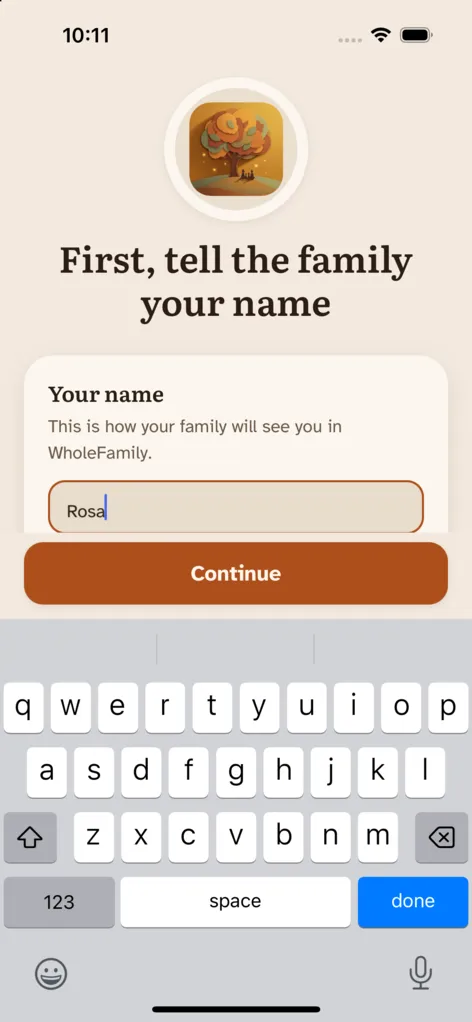
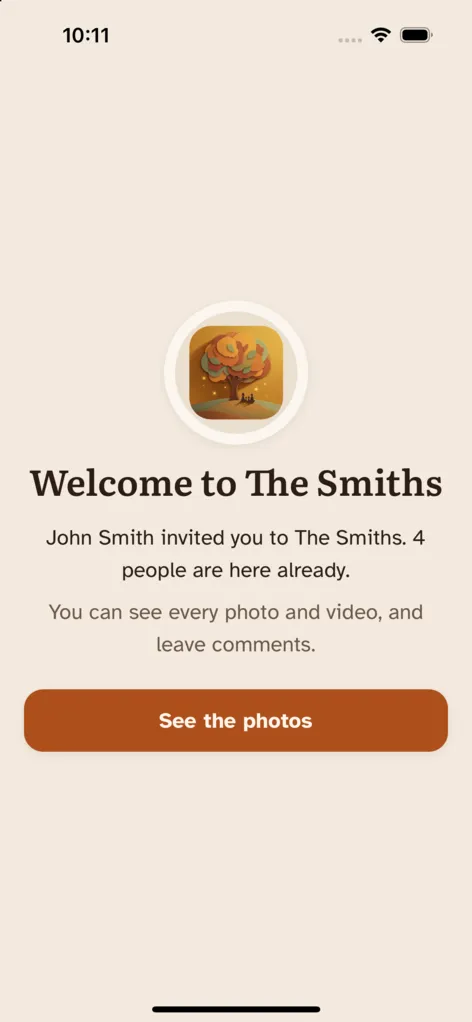
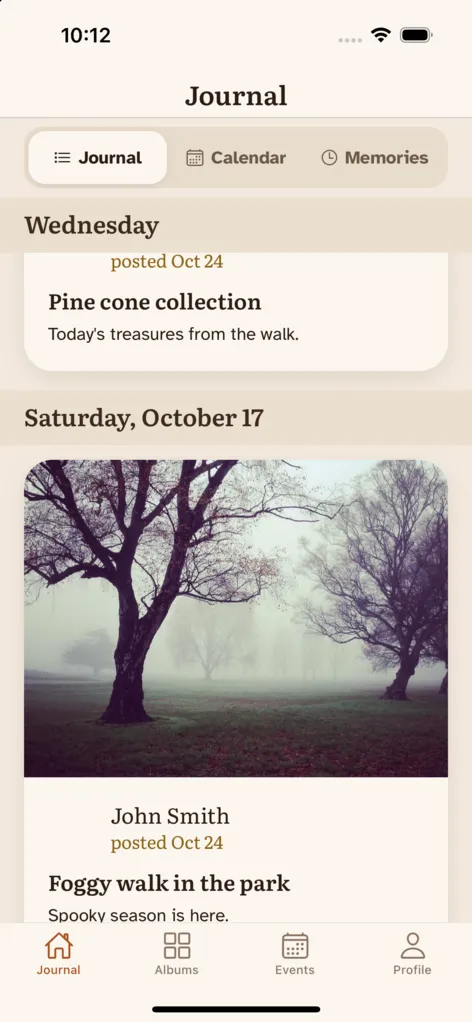
Screens show a sample family.
- WholeFamily may offer to tell you when someone posts. Tap Turn on if you would like that. You can change it later in Settings.
- WholeFamily follows your phone’s language, English or Spanish. You can also choose one in Profile, Settings, Language.
Once you are in
- Journal: the first tab. New photos and stories from the family, newest first.
- Open a post to see every photo, leave a comment, or add a reaction.
- Tap a photo to see it full screen, then swipe for the next one.
- Memories: the sparkle at the top of the Journal shows this day in past years.
- Albums: browse by album and by month.
- If you can post, the orange + button adds photos, a milestone, or a journal entry.
Need a hand?
Ask the person who invited you. They can send a new invitation or check the address it went to.